Local SEO Today!
Local SEO Today!
  • Home
  • Book A Call
  • Services
    • GMB Optimization
    • Google Maps SEO
    • GBP Suspension Help
    • ROI Calulator
    • Free GBP Audit
    • Website Design
  • About Us
  • Blog
  • Reviewus
  • Contact Us
  • SEO Services and Pricing
  • Areas We Serve
    • Mesa SEO
    • Peoria SEO
    • Scottsdale SEO
    • Tempe SEO
  • Local SEO Guide 2025
  • Google Review Audit Tool
  • GBP NoWay to Verify Guide
  • More
    • Home
    • Book A Call
    • Services
      • GMB Optimization
      • Google Maps SEO
      • GBP Suspension Help
      • ROI Calulator
      • Free GBP Audit
      • Website Design
    • About Us
    • Blog
    • Reviewus
    • Contact Us
    • SEO Services and Pricing
    • Areas We Serve
      • Mesa SEO
      • Peoria SEO
      • Scottsdale SEO
      • Tempe SEO
    • Local SEO Guide 2025
    • Google Review Audit Tool
    • GBP NoWay to Verify Guide
Get the Local SEO Guide 2025
  • Home
  • Book A Call
  • Services
    • GMB Optimization
    • Google Maps SEO
    • GBP Suspension Help
    • ROI Calulator
    • Free GBP Audit
    • Website Design
  • About Us
  • Blog
  • Reviewus
  • Contact Us
  • SEO Services and Pricing
  • Areas We Serve
    • Mesa SEO
    • Peoria SEO
    • Scottsdale SEO
    • Tempe SEO
  • Local SEO Guide 2025
  • Google Review Audit Tool
  • GBP NoWay to Verify Guide
Get the Local SEO Guide 2025

Google Business Profile No More Ways to Verify? Do This

What to Do When Google Business Profile Says “No More Ways to Verify”

If your Google Business Profile displays the message “There Are No More Ways to Verify,” don’t panic.

This message does not necessarily mean your profile has been suspended or removed from Google. In many cases, your Business Profile is still live and visible in Google Search and Google Maps. Customers can still find your business, read your reviews, visit your website, and contact you.

What it does mean is that Google has exhausted its automated verification methods. The next step is to request a manual review through Google Business Profile Support.

This guide walks you through exactly what to do.

Before You Begin

This guide is for businesses whose Google Business Profile:

  • Is still publicly visible on Google Search or Google Maps.
  • Is not suspended or disabled.
  • Has exhausted all available verification methods.
  • Displays “There Are No More Ways to Verify” or is requesting verification again after profile edits.

If your Business Profile has been suspended, you’ll need to complete Google’s reinstatement process instead. That is a different process than the one covered in this guide.


Step 1: Open the Google Business Profile Support Form

Go to the Google Business Profile Support form.

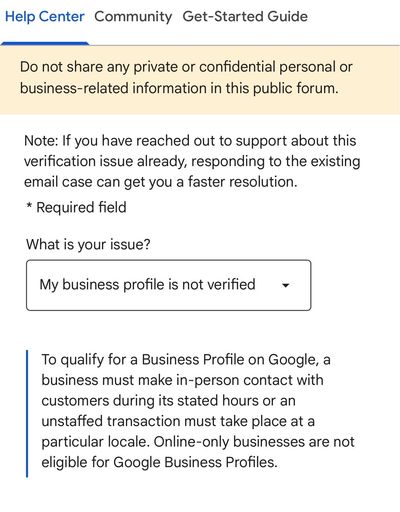
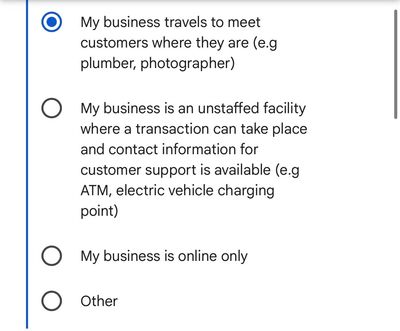
Choose:

  • Issue: My business profile is not verified.
  • Select the option that best describes your business. If you’re a service-area business, choose “My business travels to meet customers where they are.”
Step 2: Identify Your Relationship to the Business

Google will ask how you’re connected to the Business Profile.

If you’re managing the profile for a client, choose the agency option and complete the required information.
Step 3: Complete Every Required Field

Complete the form as thoroughly as possible.

Include:

  • Business website
  • Country
  • Business phone number
  • Contact email
  • Business Profile ID
  • BBB profile (if applicable)
  • A detailed explanation of the issue

Providing complete and accurate information gives Google’s support team everything they need to review your request without unnecessary delays.

Step 4: Choose the Correct Verification Problem

When asked why you’re contacting support, select the option that matches your situation.

If you’ve already completed every available verification method, choose:

“There Are No More Ways to Verify.”

If Google is asking you to verify again after updating your address or other core business information, choose the re-verification option instead.

Step 5: Upload Strong Supporting Evidence

Now provide Google with evidence that your business is legitimate.

Examples include:

  • Photos of your professional tools and equipment.
  • Photos of your branded work vehicle.
  • A recent utility bill.
  • A W-9 or other tax document.
  • Business registration documents.
  • Any additional documentation that supports your business.

The stronger your documentation, the easier it is for Google’s support team to manually verify your Business Profile.

Step 6: Submit Your Request

Before submitting:

  • Review every field for accuracy.
  • Agree to participate in a live video call if Google requests one.
  • Submit the support request.

After submission, Google will send you a confirmation email containing your unique Case ID.

Save this number. If you need to follow up with Google later, your Case ID will be your primary reference.


Final Thoughts

Receiving the message “There Are No More Ways to Verify” isn’t the end of the road.

For many businesses, it simply means Google’s automated verification process has reached its limit and a manual review is now required.

If your Business Profile is still publicly visible, carefully complete the support form, provide strong supporting documentation, and keep your Case ID. Following these steps gives Google’s support team the information they need to review your verification request and help move your Business Profile forward.

Frequently Asked Questions

Please reach us at sturner070@gmail.com if you cannot find an answer to your question.

No. In many cases, your Google Business Profile is still publicly visible on Google Search and Google Maps. Customers can continue finding your business, reading reviews, and contacting you while you work through the manual verification process.


This message typically appears after you’ve exhausted Google’s automated verification methods, such as video verification. It means you’ll likely need to contact Google Business Profile Support and request a manual review.  


Google may request documentation that helps confirm your business is legitimate, including:

  • Business Profile ID
  • Business website
  • Utility bill
  • W-9 or business registration
  • Photos of branded vehicles
  • Photos of tools and equipment
  • A detailed explanation of the verification issue

The exact requirements may vary depending on your business and verification history.


Your Business Profile ID is located in your Business Profile’s Advanced settings.

To find it:

  1. Sign in to the Google account that manages your Business Profile.
  2. Open your Business Profile.
  3. Click Business Profile settings.
  4. Select Advanced settings.
  5. Copy your Business Profile ID and include it in your support request.


If your Business Profile is still live and hasn’t been suspended, yes. Customers can often continue finding your business on Google Search and Google Maps during the review process.


No. Service-area businesses can hide their address if they don’t serve customers at their location. However, Google may still request documentation to verify where the business operates during a manual review.


A suspended Google Business Profile requires a reinstatement request, not a manual verification request. If your profile is suspended, you’ll need to follow Google’s reinstatement process rather than the steps outlined in this guide. 


Every case is different. Some businesses wait several days, while others receive a decision within minutes. In our example, Google approved the verification request approximately 20 minutes after the support form was submitted. The key is providing complete, organized documentation the first time.


  • Home
  • Book A Call
  • GMB Optimization
  • Google Maps SEO
  • GBP Suspension Help
  • ROI Calulator
  • Free GBP Audit
  • Website Design
  • About Us
  • Blog
  • Contact Us
  • SEO Services and Pricing
  • Mesa SEO
  • Peoria SEO
  • Scottsdale SEO
  • Tempe SEO
  • Local SEO Guide 2025
  • Google Review Audit Tool
  • Privacy Policy
  • Terms and Conditions

Local SEO Today

Local SEO today Peoria, AZ

(623) 301-2237

Copyright ©  - All Rights Reserved.

Local SEO Today

Cookie Policy

This website uses cookies. By continuing to use this site, you accept our use of cookies.

DeclineAccept & Close